OpenKeys logo
OPENKEYS GUIDE
Switch deviceQuick start
Complete visual manual

Play with confidence.

Learn OpenKeys from the first cable connection to a complete live performance. Every lesson uses clear steps, real interface images, and practical checks.

Phone friendlyTablet readyWorks offline
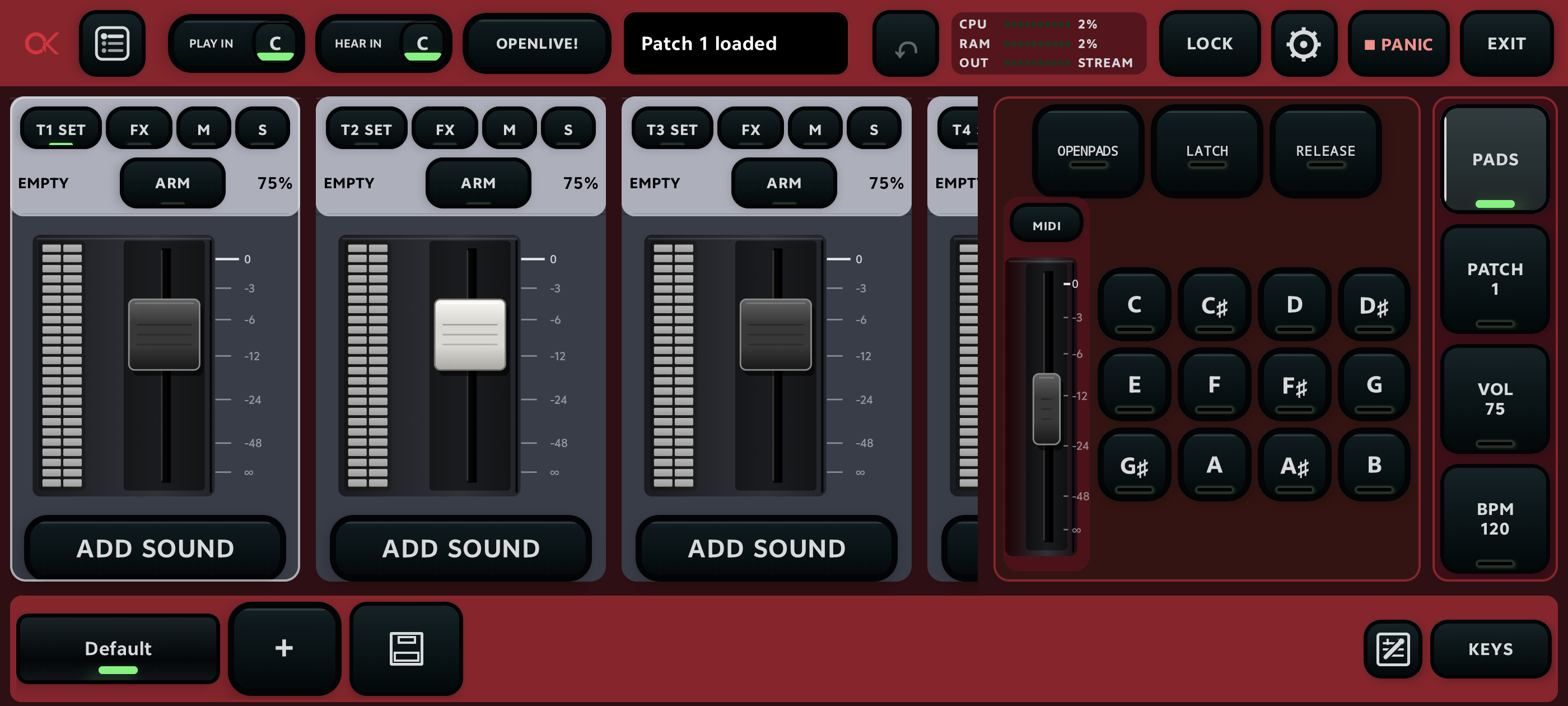
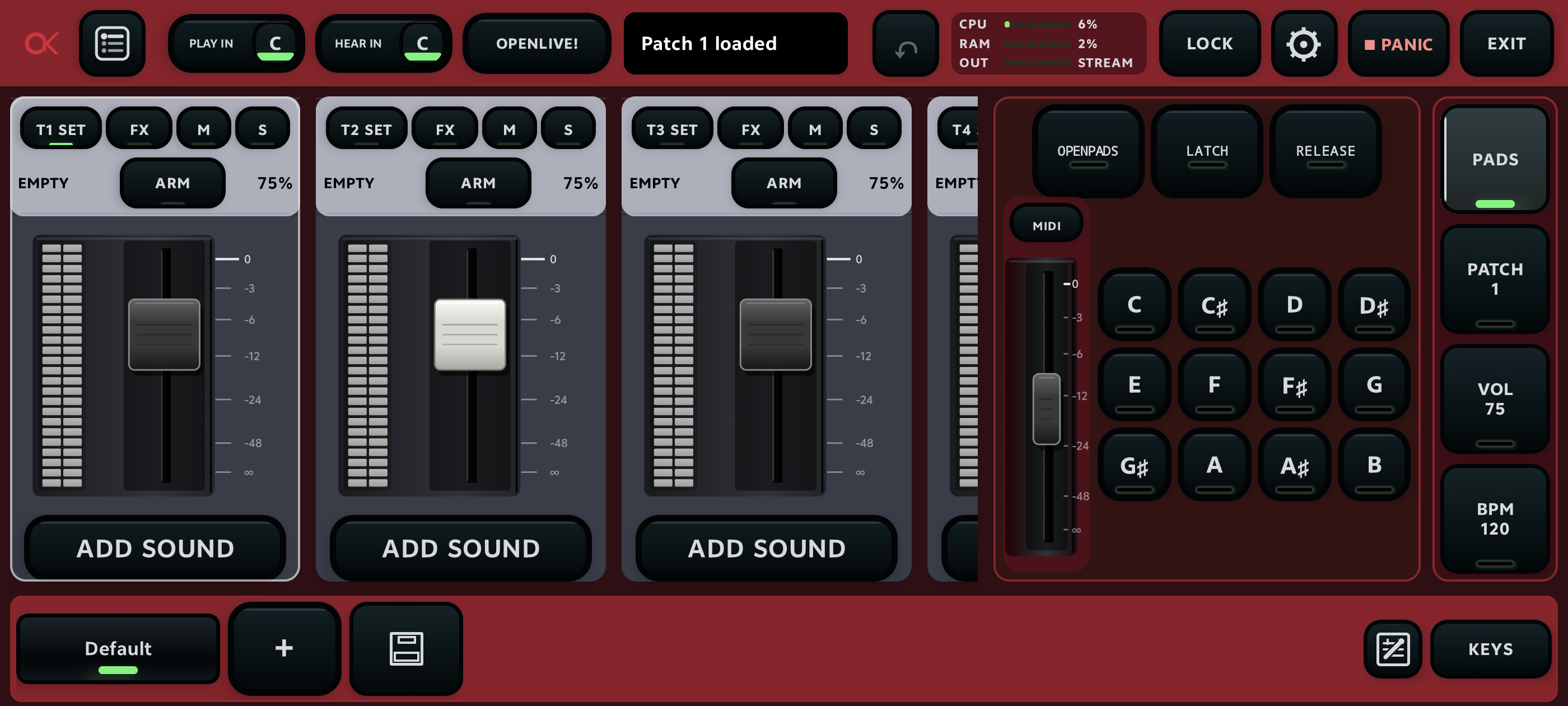
OpenKeys mixer on the connected Android device
The live mixer workspace
01

Quick start

Get one playable piano-and-pad patch working before exploring advanced controls.

Your finish lineYou can play the keyboard, hear the correct output, change from a quiet scene to a larger scene, and reopen the saved patch.
  1. Connect the keyboard and audio output.Use USB for MIDI. If you use an interface, connect it through a powered hub and start with its output level low.
  2. Open a setlist.Use the list button, select the desired setlist, then load it.
  3. Create or select a patch.A patch is the complete sound setup for one song or musical purpose.
  4. Add the first sound.Select ADD SOUND, choose a piano SoundFont and preset, then test soft and loud playing.
  5. Add a pad on the next layer.Raise it until it supports the piano without hiding the piano attack.
  6. Create Verse and Chorus scenes.Save the restrained mix as Verse, then raise the supporting layer and save Chorus.
  7. Lock and rehearse.Recall both scenes while playing, confirm clean audio, save the patch, and test it again.
Protect your ears and speakersKeep the master, interface, and sound-system levels down during connection. Raise one stage at a time only after the correct output is confirmed.
▶
Interactive course · about 15 minutes

Your first complete performance

Follow one safe path from connected equipment to a rehearsed Verse–Chorus performance. Check a step only after its verification succeeds.

Course progress0 of 7 complete
Open coaching
  1. Power the hub, then connect Android, MIDI keyboard, and audio interface.
  2. Approve Android USB access if prompted.
  3. Play several notes and confirm MIDI activity before raising output.

Verify: soft and hard notes both register, with no stuck notes.

Open coaching
  1. Open Setlists and select the intended setlist.
  2. Review its patch list and load the correct patch.
  3. Confirm the patch name in the mixer header.

Verify: leaving and reopening the setlist returns to the intended patch.

Open coaching
  1. Tap Add Sound on Track 1 and load a piano preset.
  2. Add a pad on Track 2.
  3. Balance dry levels before adding effects; test the lowest and highest required notes.

Verify: the piano remains clear and the combined loudest playing does not clip.

Open coaching
  1. Set the quiet Verse balance and tap + to save a Verse scene.
  2. Raise or add the supporting layer and save a Chorus scene.
  3. Recall Verse, Chorus, then Verse again.

Verify: every recall restores the expected levels and active layers.

Open coaching
  1. Create or select a song containing [Verse] and [Chorus] sections.
  2. Hold the Verse scene, select the song and Verse part, then save.
  3. Repeat for Chorus.

Verify: recalling each scene changes both the sound and visible lyric section.

Open coaching
  1. Start MIDI Learn on the scene or OpenNotes action.
  2. Press the intended physical control once.
  3. Check that the message is not assigned to an unwanted action.

Verify: five presses cause exactly one intended change each. Without a controller, verify the on-screen scene buttons.

Open coaching
  1. Set safe master volume and confirm the correct output.
  2. Enter OpenNotes Performance Mode and lock editing controls.
  3. Perform the transition sequence while watching audio health.
  4. Save, close, reopen, and repeat once.

Verify: sound, scene highlight, lyrics, MIDI control, CPU, and audio remain correct after reopening.

02

Connect your equipment

Build the signal path in a fixed order so MIDI, audio, and power problems are easy to isolate.

Recommended order

Connect from power to sound

  1. Turn speaker volume down.
  2. Power the hub.
  3. Connect the hub to Android.
  4. Add the MIDI keyboard.
  5. Add the audio interface.
  6. Connect headphones or speakers.
  7. Open OpenKeys and approve device access.
Confirmation

Test one system at a time

Play several notes and look for MIDI activity. If the app responds, verify the selected audio output. Raise the OpenKeys master first, then the interface, then the speakers.

Test the lowest and highest keys you expect to use.

Powered hubs are usefulA keyboard and audio interface can draw more power than a phone or tablet should provide alone. A powered hub also helps keep the Android device charged.
03

How OpenKeys is organized

Four levels keep preparation separate from performance.

SETLISTService order
PATCHOne song’s setup
LAYERSPiano, pad, texture
SCENESVerse, chorus, bridge

Prepare

Create and order setlists, build patches, balance layers, add effects, save scenes, prepare OpenNotes, and assign MIDI controls.

Perform

Choose patches and scenes, read notes, use OpenPads for transitions, and keep edit controls locked unless a deliberate change is needed.

Simple ruleThe setlist chooses the order. The patch chooses the sounds. A scene chooses the state of those sounds for a musical moment.

04

Setlists and patches

Organize the whole service before changing individual sounds.

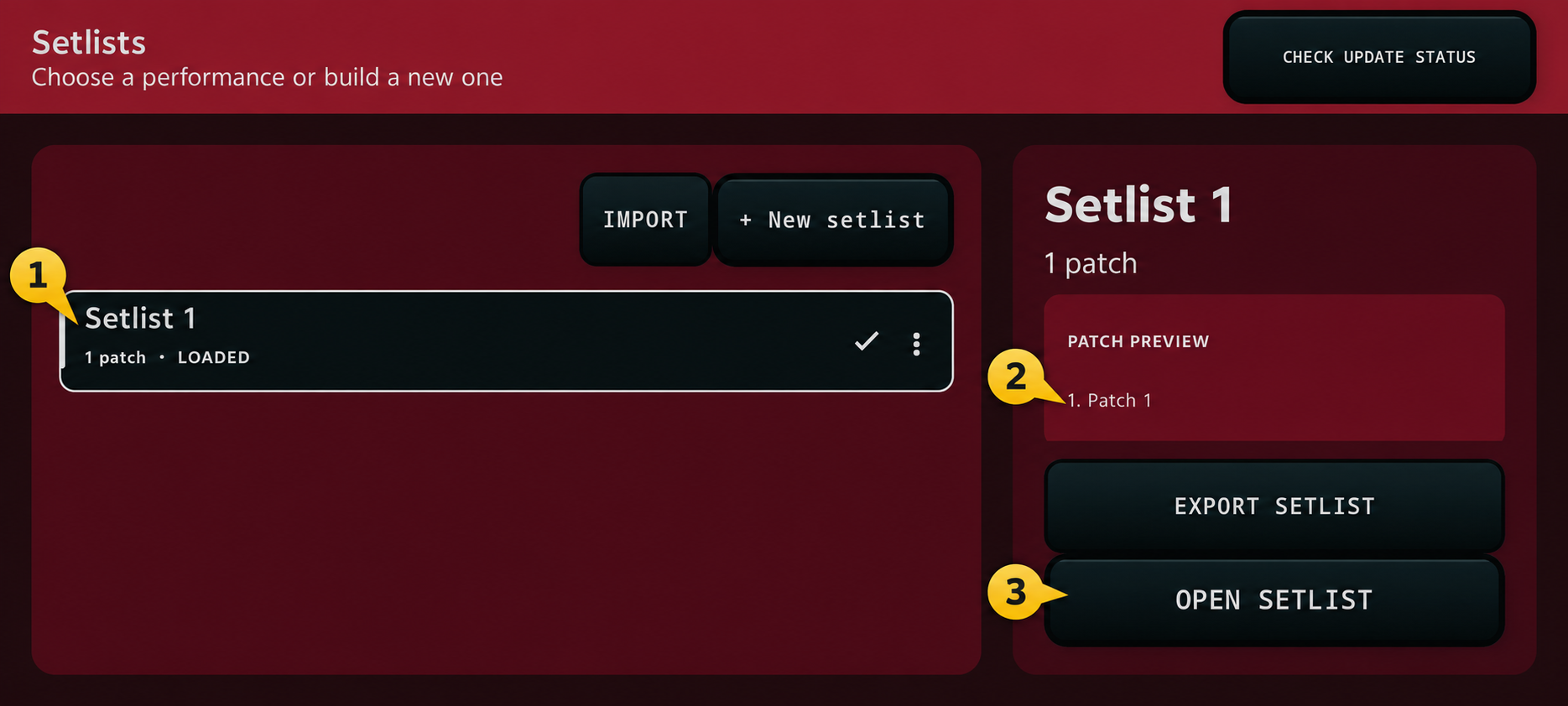
Current Setlists screen with fixed numbered markers
1Select a saved setlist.
2Review its patch count and preview.
3Open the selected setlist.
  1. Open the setlist screen.Use the list icon from the mixer header.
  2. Select an existing setlist.Review its name and patch count before loading.
  3. Create one only when needed.Use a meaningful event or service name, then add patches in performance order.
  4. Open every patch.Confirm the starting scene, OpenNotes assignment, and intended sound files.
  5. Export before important changes.Keep backups outside the app and preserve the original SoundFont files separately.

Patch and setlist file operations

Copy and move safely

Use Copy and Paste to setlist to make an independent copy in another setlist. If the patch has unsaved changes, deliberately choose whether to save and copy the working version or copy the last saved version.

Rename and reorder patches so their screen order matches the performance order.

Import, export, and backup

Export individual patches when sharing one setup. Export the setlist when preserving the full order. Import into the intended destination and verify every external SoundFont reference afterward.

OpenNotes has its own backup; keep it with the setlist and source sound files.

Protected defaultsThe Default setlist, Default patch, and Default scene provide a safe starting state. Build user material around them instead of trying to remove those protected items.
05

Mixer and sound layers

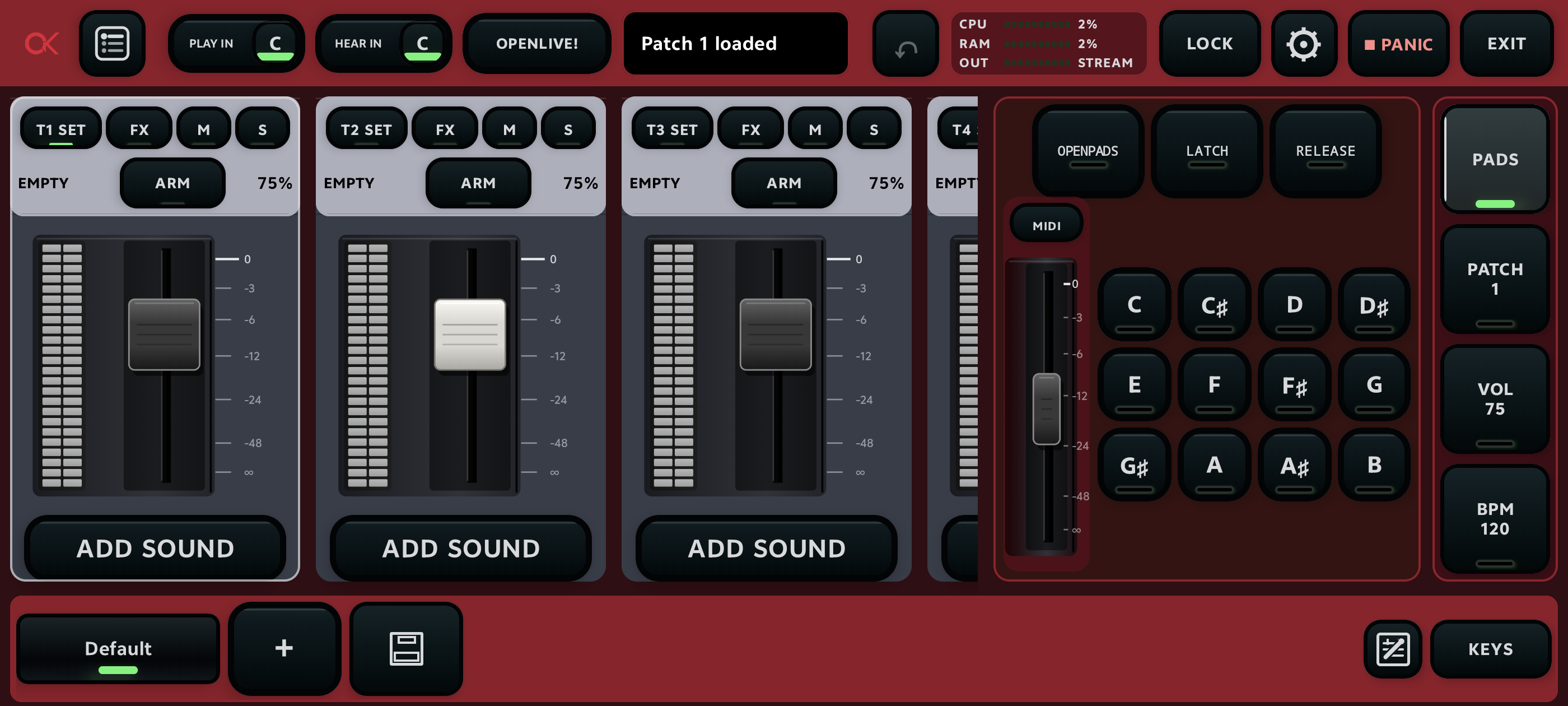
The mixer is the central sound workspace. Each channel is one layer in the current patch.

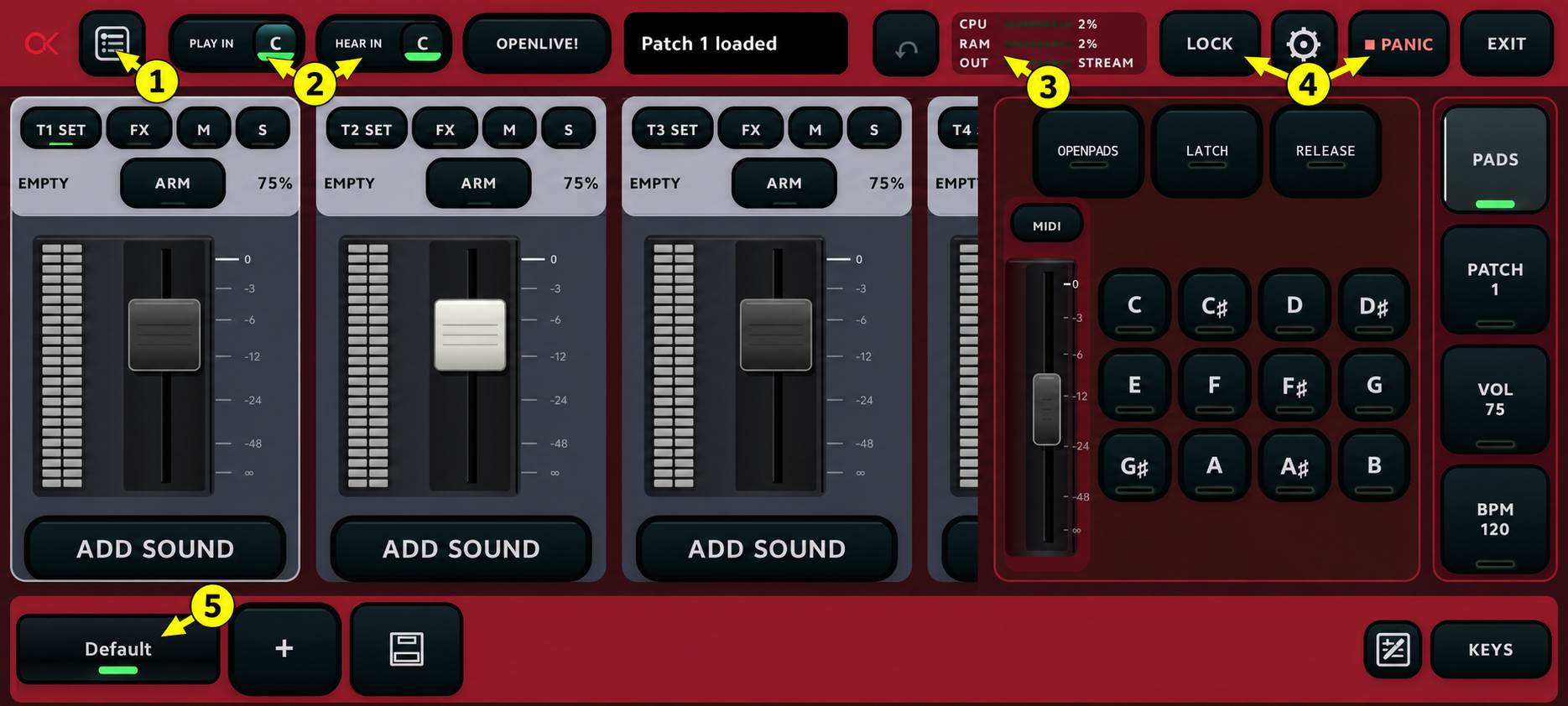
Current OpenKeys mixer with fixed numbered markers
1Open setlists.
2Play In and Hear In key controls.
3CPU, RAM and audio output status.
4Performance Lock and Panic.
5Scene row.

Channel header

SET opens layer configuration. FX opens effects. M mutes. S isolates the layer for checking.

Fader and meter

The fader sets the musical balance. The meter shows signal level. Leave enough headroom for harder playing and combined layers.

Add Sound

Choose a SoundFont and preset for an empty layer. Audition across the actual keyboard range before committing.

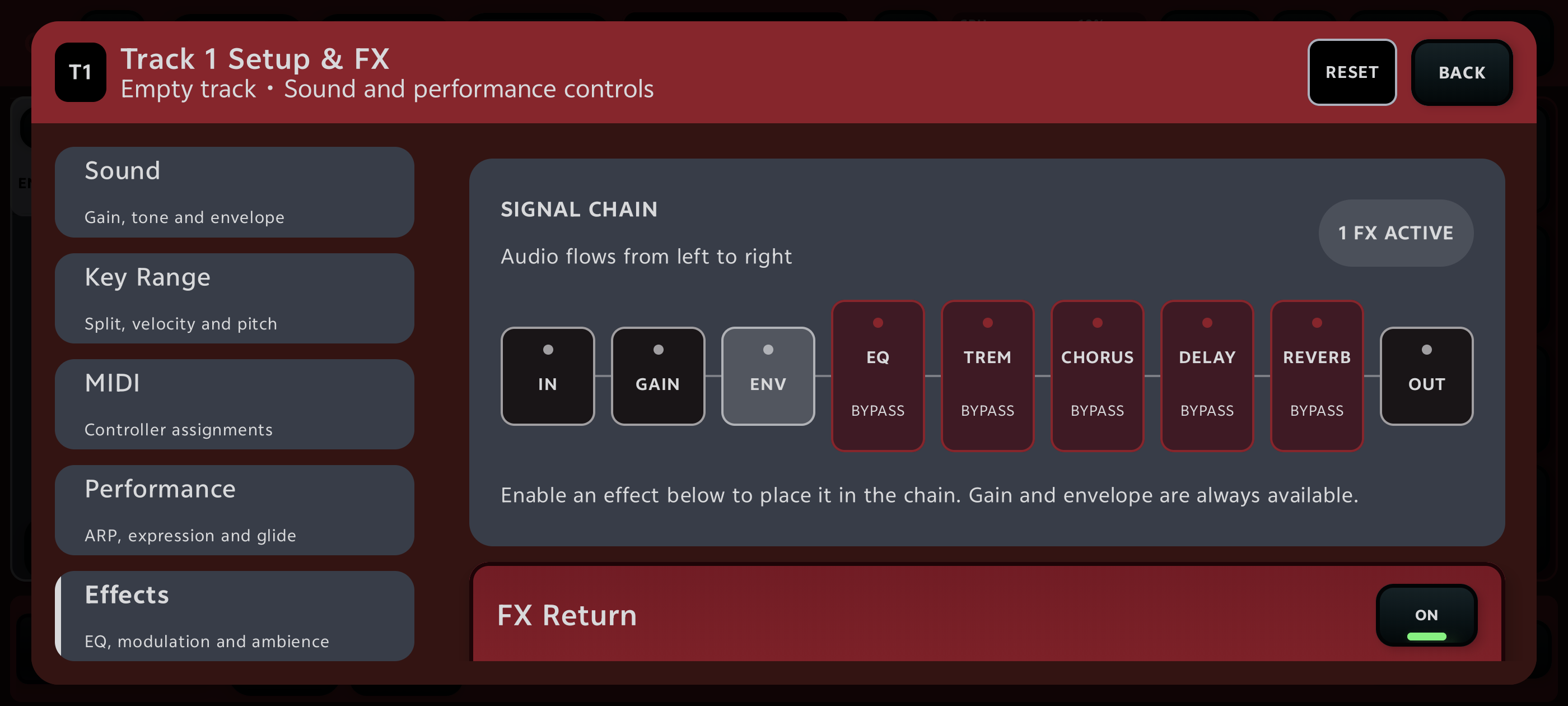
Layer Sound and Effects screen showing the signal chain
Layer settings keep keys, control mapping, pitch, performance, and the effect signal chain in one focused editor.

Advanced layer controls

Keyboard and expression

Set low/high key range, transpose, octave, velocity response, sustain behavior, pitch bend, and Mod Wheel behavior for the layer.

MIDI routing

Choose the controlling keyboard or MIDI channel, use MIDI Learn where offered, and verify Bluetooth MIDI separately before the service.

Sound shaping

Use envelope, filters, reverb, delay, chorus, drive, compressor, arpeggiator, or sequencer only when the layer’s musical role requires them. Follow the displayed signal chain.

Mixer performance controls

  • Play In / Hear In.Transpose incoming playing and monitored key display deliberately; reset both before diagnosing wrong notes.
  • Master, pitch, Mod Wheel, and BPM.These affect the performance globally or feed supported sound controls. Confirm their starting values in rehearsal.
  • Lock and Undo.Lock prevents accidental edits on stage. Undo reverses the latest supported edit; it is not a substitute for saving.
  • Panic.Use Panic to stop stuck notes, then identify the controller or sustain source after audio is safe.
  • CPU, RAM, and output.Use them as health indicators while testing the busiest scene.
Balance before effectsMute or solo layers and establish the dry mix first. Reverb cannot fix competing layers, and more gain is not a substitute for a clear role.
06

Build your first complete patch

Use one repeated musical phrase while making decisions so every comparison is fair.

  1. Create and name the patch.Choose a name that remains clear inside a crowded setlist.
  2. Load the piano on Track 1.Play softly and firmly. Confirm that the full range responds and the loudest notes do not clip.
  3. Add a warm pad on Track 2.Hold a chord and raise the pad slowly. Stop when it supports the piano without covering its attack.
  4. Limit the role of Track 3.Add strings or texture only if the arrangement needs it. Use a key range, lower level, or scene state so it does not play constantly.
  5. Shape the sound.Add ambience in context. Keep the dry attack clear and compare before and after at similar loudness.
  6. Test the full combination.Play the loudest expected chorus and watch the channel and master meters.
  7. Save, close, and reopen.Verify the actual stored patch rather than trusting an unsaved working state.
A good patch has jobs, not just layersPiano gives definition, pad gives width, and the optional texture gives lift. If two layers do the same job, simplify.
07

Scenes: build and perform a song

A scene stores a playable state of the current patch so one tap can move the arrangement from Intro to Verse, Chorus, Bridge, or Ending.

Mixer with the scene strip along the bottom
Scene strip: tap to recall, tap + to create, use the update button after changing the mixer, and press and hold a scene to edit it.
Recall

One tap during performance

Tap a named scene to restore its captured track state. The active scene is indicated in the strip.

Create

Capture a new moment

Set the track levels and states first. Tap +, give the scene a musical name, then save it.

Update

Keep an existing scene

Recall the scene, make the mixer changes, then use Update selected scene. Recall another scene and return to verify it.

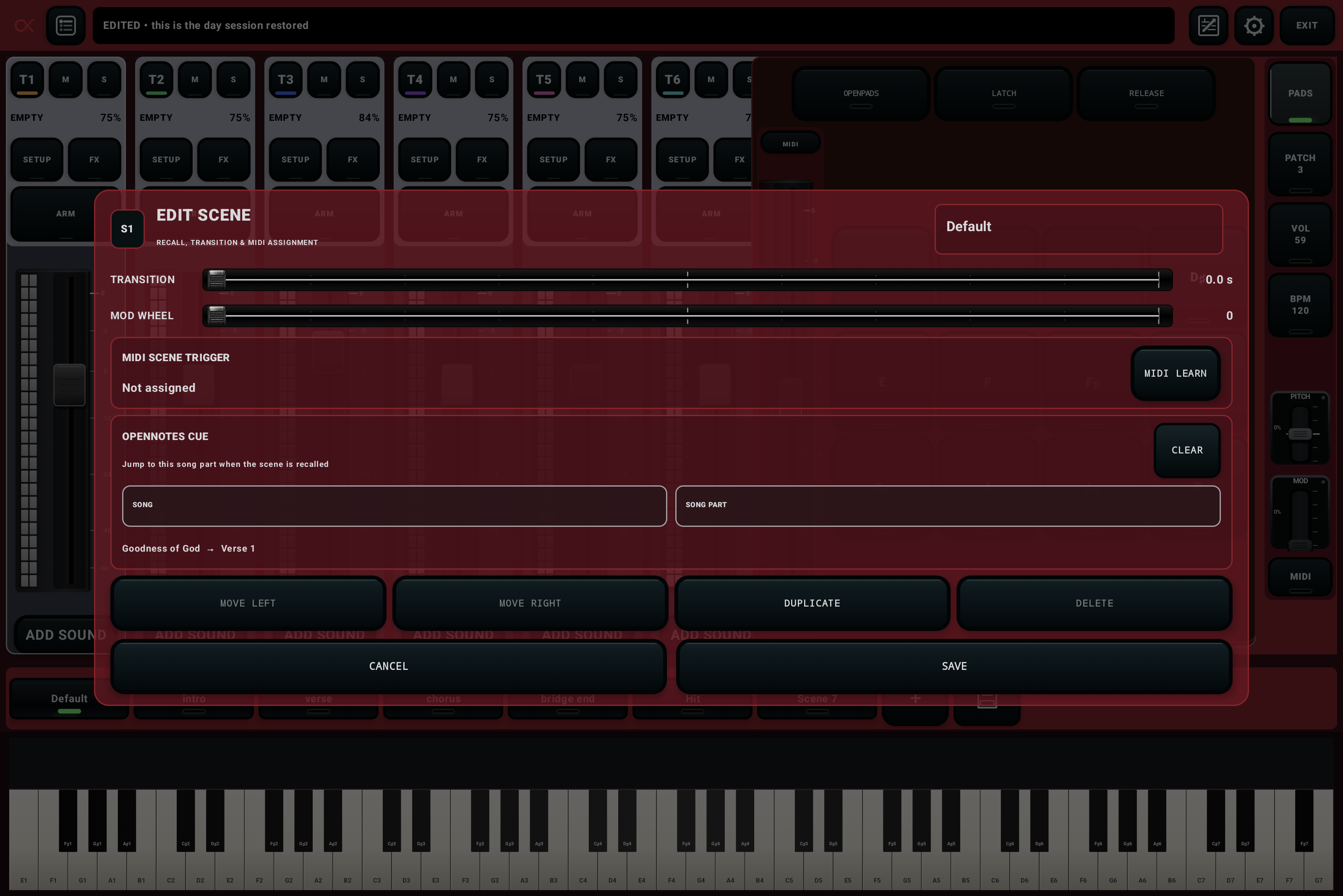
Landscape tablet Scene editor
The Scene editor contains transition time, Mod Wheel value, MIDI trigger, OpenNotes cue, order, duplicate, delete, and save controls.

Use every Scene editor control

  1. Name the scene.Use its musical purpose: Intro, Verse, Chorus, Bridge, Hit, or Ending.
  2. Set the transition.Use a short fade for smooth layer changes or 0.0 seconds for an immediate change.
  3. Set Mod Wheel.Store a predictable starting value when the sound depends on modulation.
  4. Assign a MIDI trigger.Start MIDI Learn, move the desired hardware control once, then test it repeatedly.
  5. Bind an OpenNotes cue.Select the song and matching part so scene recall also moves the lyrics.
  6. Arrange the row.Move left or right to follow the song. Duplicate before creating a variation.
  7. Save and prove it.Recall another scene, return, and confirm its sound, transition, MIDI trigger, and lyric section.

Recommended song map

  • IntroFocused starting sound.
  • VerseSmaller dynamic state.
  • ChorusLarger pad or added texture.
  • BridgeDistinct build or lead layer.
  • EndingControlled final state.
Performance safety

Test every recall path

Test the scene button, MIDI control, and OpenNotes cue separately. OpenPads and OpenNotes recall existing scenes; create and edit them from the mixer.

08

OpenPads

Use a sustained pad beneath speaking moments and transitions without occupying both hands.

OpenPads with scene recall controls
OpenPads keeps current-patch scenes available for recall while the pad supports the transition.
  1. Choose the sound mode.Select SoundFont or Audio when that option is available for the current configuration.
  2. Match the musical key.Confirm the key before raising the level.
  3. Start quietly.Trigger the pad and listen beneath the full mix.
  4. Use latch deliberately.Latch keeps the sound active after release. Know exactly how you will stop it.
  5. Recall scenes when needed.The scene strip changes the current patch; it does not create or edit scenes here.
  6. Release before a conflicting key.Allow the tail to end cleanly or move keys only at a planned musical moment.

Sound and library

Choose the OpenPads sound source, import or select a supported SoundFont/preset, and test all twelve note buttons. Match the displayed key to the song before engaging Latch.

OpenPads effects and control

Balance its dedicated volume, assign volume MIDI Learn when needed, and shape its effect chain separately from mixer layers. Use Release to end the pad cleanly and confirm its tail does not overlap the next key.

Availability varies by audio configurationIf a mode is unavailable, confirm the active OpenStream option and the feature access shown by the installed build. Do not change audio drivers during a live song.
09

OpenNotes

Create searchable song documents, divide them into sections, and keep scenes beside the lyrics in Performance Mode.

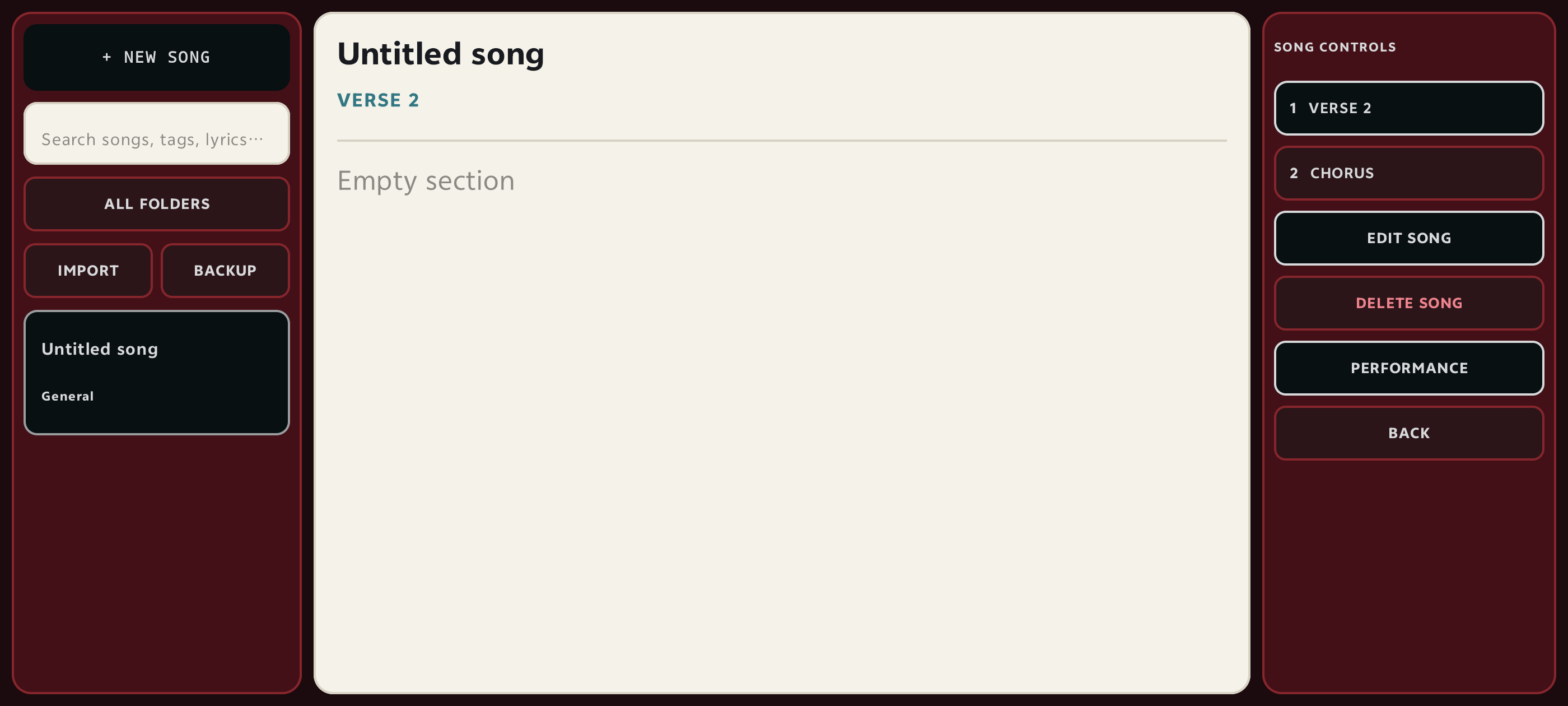
OpenNotes main library and reading interface
The left area manages songs. The center is dedicated to the document. Editing and performance actions stay at the edge.

Create a sectioned song

  1. Create a new song.Add a clear title, musical key, folder, and tags that will help search later.
  2. Enter original or licensed content.Paste lyrics and chords into the editor.
  3. Add section markers.Use markers such as [Verse], [Verse 2], [Pre-Chorus], [Chorus], [Bridge], and [End].
  4. Build parts from tags.Convert the markers into navigable song sections, then check their order.
  5. Format only what helps reading.Use bold, italic, underline, and chord display consistently. Finish editing before performance.
  6. Back up the library.Export before moving devices or making large edits.

Reading controls

Change text size, pinch to zoom, select Paper, Dark, or OLED display, choose sharps or flats, and transpose displayed chords without rewriting the stored song.

Navigation controls

Use the song-part buttons, auto-scroll, manual scrolling, MIDI actions, or a scene’s bound cue. Test every method before the live set.

Marker spelling mattersUse consistent names. A scene bound to “Chorus” should point to the intended Chorus section, especially when the song also contains Chorus 2.
10

OpenNotes Performance Mode

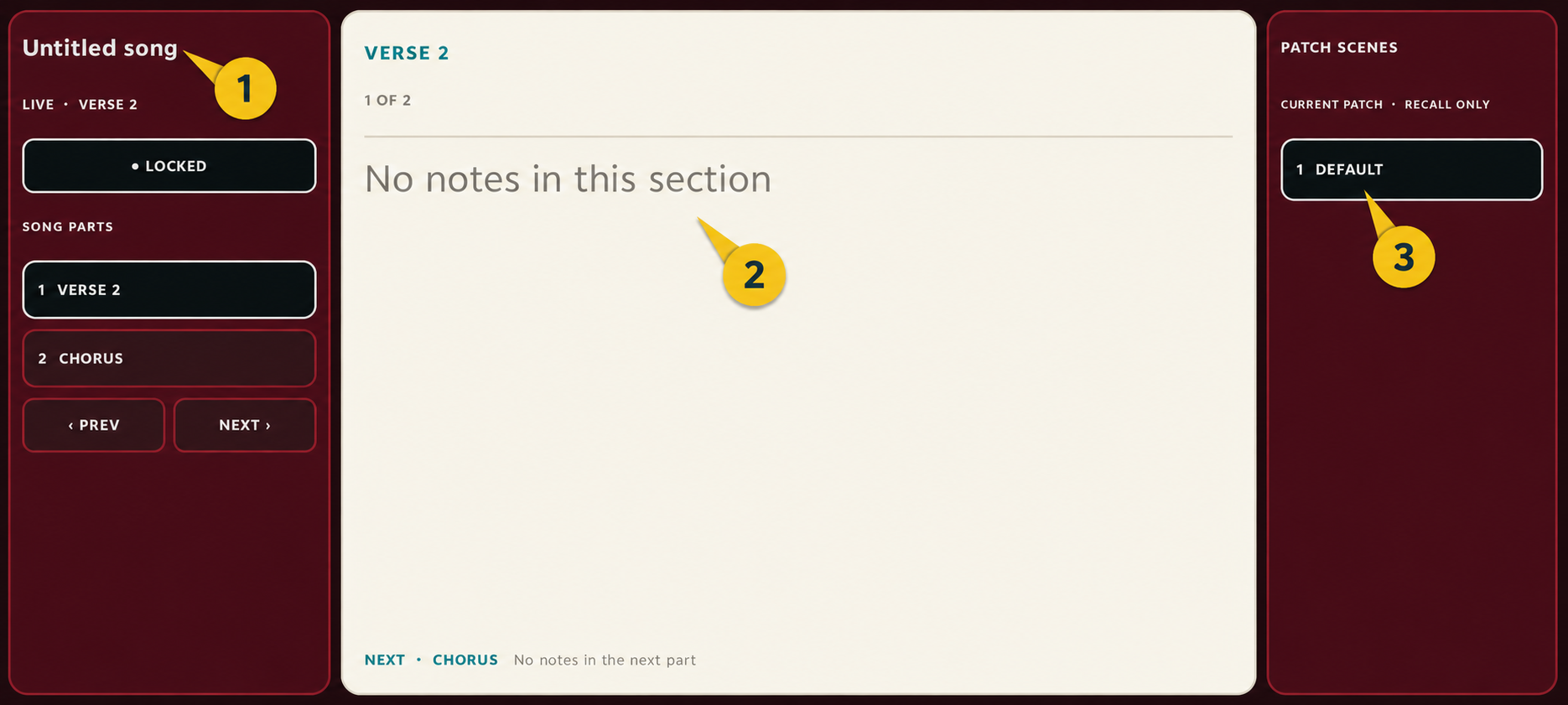
The performance layout gives most of the screen to lyrics while keeping song parts and patch scenes within reach.

Current OpenNotes Performance Mode with fixed numbered markers
1Current song and song-part controls.
2Readable lyrics and chords.
3Patch scenes, recall only.
  1. Enter with the correct patch loaded.Confirm the song title and starting scene before playing.
  2. Set readable text before the song.Choose zoom, theme, chord spelling, and auto-scroll speed during rehearsal.
  3. Use song parts for direct navigation.Tap Verse, Chorus, Bridge, or another prepared section.
  4. Use scenes for combined changes.A bound scene can change the patch sound and move OpenNotes to its matching section.
  5. Keep editing locked.Leave Performance Mode only when a deliberate content change is necessary.
Performance testRun Verse → Chorus → Verse 2 → Bridge → Ending without editing. Confirm the sound, highlighted scene, visible section, and footswitch behavior after every change.
11

MIDI controls and footswitches

Assign only the actions you need while playing. The best mapping is easy to reach and hard to trigger accidentally.

OpenKeys settings showing MIDI controller status
Confirm that the intended controller appears before starting MIDI Learn or diagnosing a mapping.

Useful assignments

  • Scene recall
  • Previous OpenNotes part
  • Next OpenNotes part
  • Scroll up
  • Scroll down
  • OpenPads volume when supported

MIDI Learn sequence

  1. Open the action’s assignment control.
  2. Start Learn.
  3. Press or move the hardware control once.
  4. Confirm message type, number, and channel.
  5. Test several times from playing position.
  6. Save and test after reopening.
Avoid conflictsIf one physical control sends a message already assigned elsewhere, both actions may react. Clear the unwanted mapping and repeat the test from a clean state.
12

SoundFonts and sound management

A saved patch depends on its external sound files remaining available to the device.

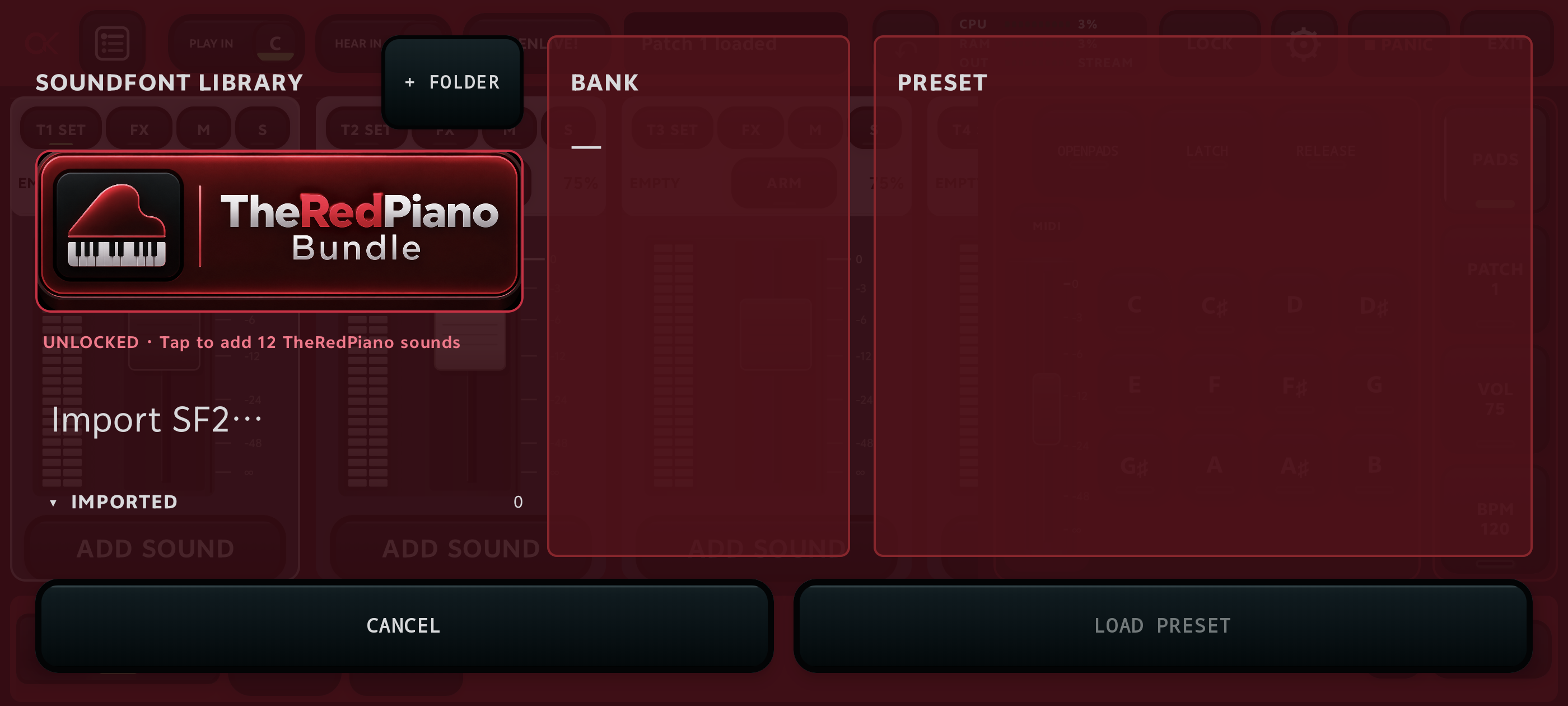
SoundFont library with import, package download, bank and preset columns
Select a SoundFont, then choose a bank and preset before loading it into the layer.
  1. Store files in a stable location.Avoid temporary or automatically cleaned folders.
  2. Import the SoundFont.Wait for the library to read its available presets.
  3. Select a bank and preset.Audition low, middle, and high notes before loading.
  4. Add it to the patch.Set level and key range, then save.
  5. Verify persistence.Close and reopen the patch to confirm the reference resolves.
  6. Back up both configuration and source file.A setlist export may not contain the external SoundFont itself.
Memory disciplineLarge SoundFonts and many simultaneous layers use more RAM. Load what the performance needs, test the busiest patch, and remove unused layers rather than relying on a universal “safe” percentage.
13

Audio engine and settings

Choose the lowest-latency mode that remains stable on the actual device, interface, and busiest patch.

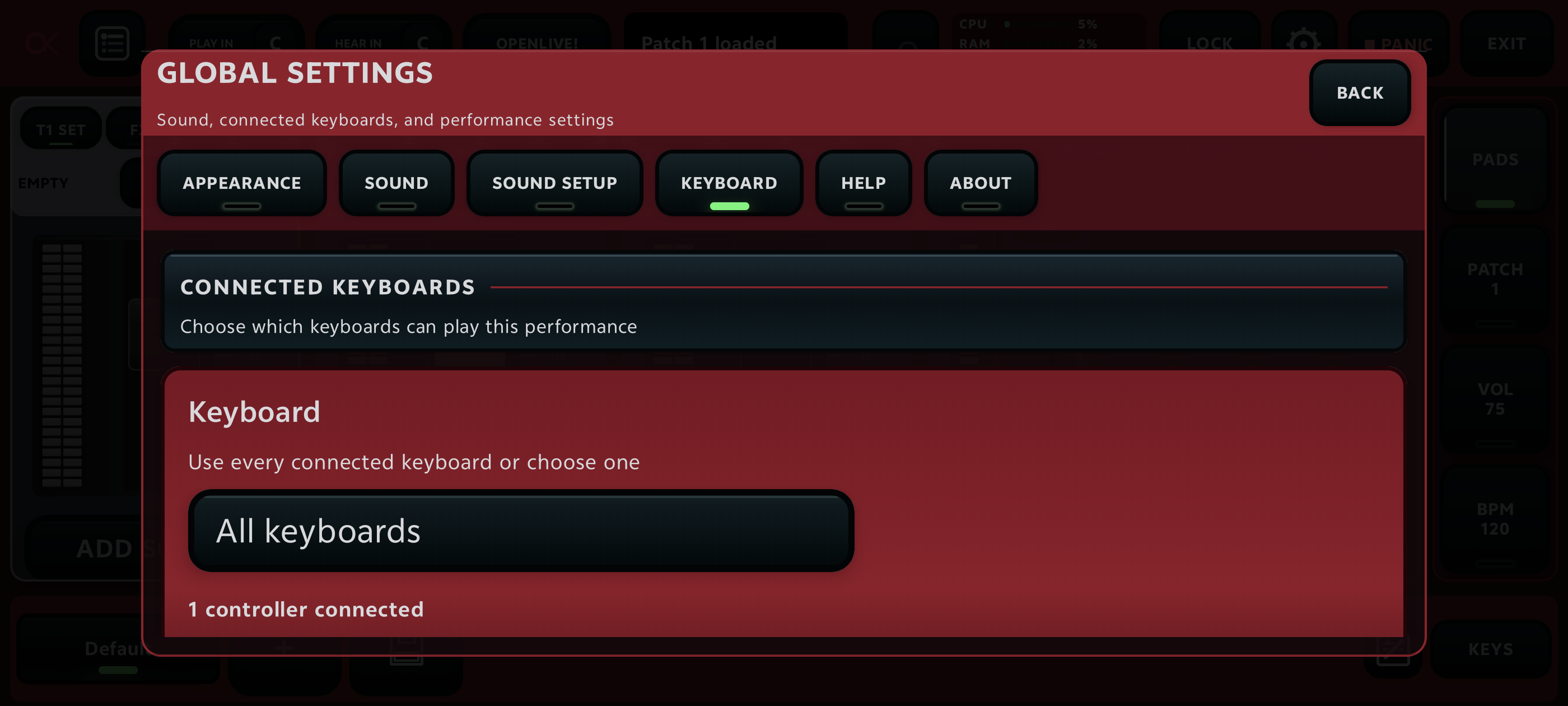
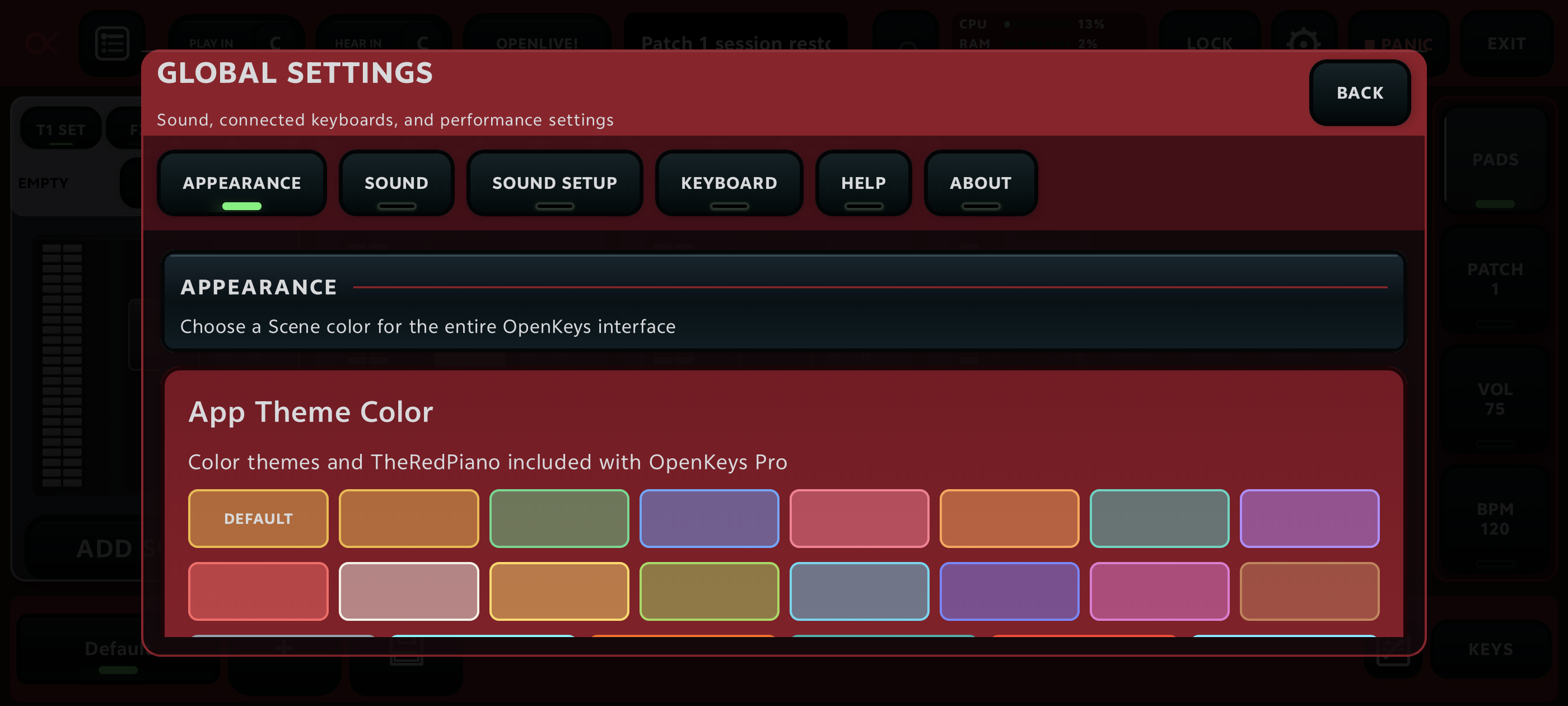
OpenKeys Global Settings window
Global Settings is divided into Appearance, Sound, Sound Setup, Keyboard, Help, and About.

Appearance

Select the app theme and preview its stage contrast. Confirm text, active controls, meters, and scene selection remain readable under venue lighting.

Sound

Set master-related behavior and inspect rendered output. Use the recent-change and recovery controls only after understanding what state they restore.

Sound Setup

Choose engine mode, output route, sample rate or USB format where supported, background behavior, and recovery options. Restart and retest after important changes.

Keyboard

Review connected USB and Bluetooth controllers, enable only the keyboards meant to play, and confirm channel/input behavior.

Help

Use the built-in quick-start and recovery guidance when working directly on the device.

About

Check the installed version, official update route, support, and community links before reporting a reproducible problem.

ModeFrame sizeUse it whenIf unstable
OpenKeys Native64 framesThe supported device and connection remain clean under the heaviest patch.Move to Low Latency Mode.
Low Latency Mode128 framesYou need responsive playing with more stability margin.Move to Standard Mode or simplify the patch.
Standard Mode256 framesReliability is more important than the shortest response.Reduce layers/effects and inspect the connection.

How to test correctly

  1. Start at a safe output level.Select the intended audio device.
  2. Load the busiest patch and largest scene.Do not test only an empty patch.
  3. Play densely for several minutes.Watch CPU, RAM, and audio status.
  4. Listen for clicks or dropouts.If present, choose the next safer mode before changing multiple settings.
  5. Restart and repeat.A mode is ready only if it remains stable after reconnecting the real rig.
Do not chase percentages aloneCPU and RAM indicators are clues. Audible stability, reliable MIDI response, and successful full-set rehearsal are the deciding tests.

Other performance views

OpenLiveboard / scene grid

Use the large scene grid when you need bigger recall targets than the mixer strip. It recalls the current patch’s scenes and shows MIDI assignments; edit scene content from the Scene editor.

Phone keyboard view

On a phone, the dedicated keyboard view combines the performance keyboard, scene strip, and track controls. Use it for rehearsal or emergency playing, and verify octave/range before the song.

14

Troubleshooting

Check one system at a time: power, cable, permission, device selection, then patch configuration.

The keyboard is connected but there is no MIDI response

Confirm keyboard power, reconnect the USB cable, approve Android device access, and inspect the MIDI device list. Try another cable or hub port before rebuilding the patch.

MIDI responds but there is no sound

Check the selected audio output, master level, channel mute states, interface gain, and physical speaker path. Start with levels low before reconnecting output hardware.

There are clicks, crackles, or dropouts

Choose the next safer latency mode, close unnecessary background activity, and retest the busiest scene. Remove unnecessary layers or heavy effects before adding more processing.

The wrong scene or OpenNotes section appears

Confirm the active setlist and patch. Recall the scene, inspect its stored mixer state and OpenNotes cue, repair the binding, save it, switch away, and recall it again.

A SoundFont is missing

Check whether the source file was moved, renamed, or deleted. Restore it to its stable location or select it again, save the patch, and reopen it to verify.

OpenPads is unavailable

Confirm the currently selected audio configuration and the feature access reported by the installed build. Do not switch audio modes mid-performance; use the prepared fallback instead.

Performance is using too much CPU or RAM

Test the largest scene, remove unused layers, shorten or bypass unnecessary effects, use smaller required SoundFonts, and choose a safer buffer mode. Rehearse after each single change.

Live recovery ruleRestore a simple playable sound first. Investigate the detailed cause after the performance is safe.
15

Before every live set

Reliability comes from rehearsing the complete system—including transitions and recovery—not just individual sounds.

  • Charge and power every device.
  • Enable Do Not Disturb.
  • Connect devices in the rehearsed order.
  • Load the correct setlist.
  • Confirm the selected audio output.
  • Play the loudest patch and scene.
  • Test every assigned footswitch.
  • Confirm each scene’s OpenNotes cue.
  • Set OpenNotes zoom and scrolling.
  • Prepare an uncomplicated fallback patch.
  • Keep current backups accessible.
  • Run every song transition once.
PREPAREFiles + order
→
CONNECTPower + MIDI + audio
→
TESTLoudest scene
→
PERFORMLocked controls
→
RECOVERSimple fallback
You are readyA complete rehearsal should prove the setlist order, patch sounds, scene recalls, OpenPads transitions, OpenNotes navigation, MIDI assignments, and audio stability as one continuous performance.